Navigate the hiring dashboard
Use the dashboard to decide what to do next and to find an individual record without searching every workspace area.
Sign in and check the active organization, especially if you work with multiple hiring teams.
1. Check workspace setup
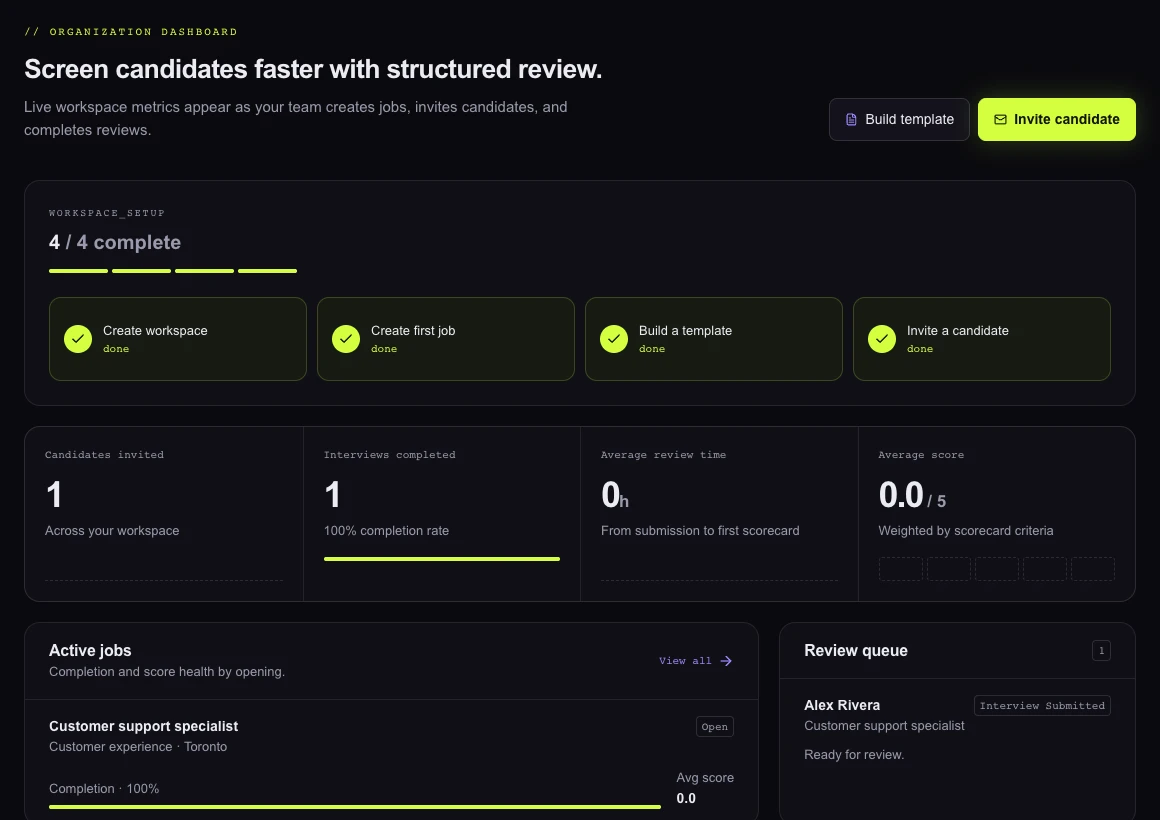
The setup strip tracks workspace creation, the first job, the first template, and the first candidate invitation. Open the unfinished step. The metrics below summarize invitations, completions, review time, and weighted scores across the workspace.
2. Read a job and open a review
Use Active jobs to compare openings, then open a role for its applications and funnel. In Review queue, open a submitted candidate to inspect their responses. Use the job selector on the pipeline visualization to narrow the funnel.
 View full size
3. Search across the workspace
Use the search control or Command K on Mac, Control K on Windows. Enter a role title, candidate name or email, or words from a template prompt. Select a result to open its job, review, or template library.
4. Follow a notification
Open the bell for recent submissions and failed invitation deliveries. A submission takes you to the candidate record. A delivery alert takes you to Interviews, where you can find the affected recipient. Help opens the workspace help center and its keyboard shortcuts.
Check your result
You can identify the next setup action, find a specific record, and return to the submission that needs your review.