Find and import candidates
Use Candidates as your directory. Adding a contact and sending an interview invitation are separate steps.
Use Candidates to create or look up a contact. Use Interviews when the goal is to send someone a link.
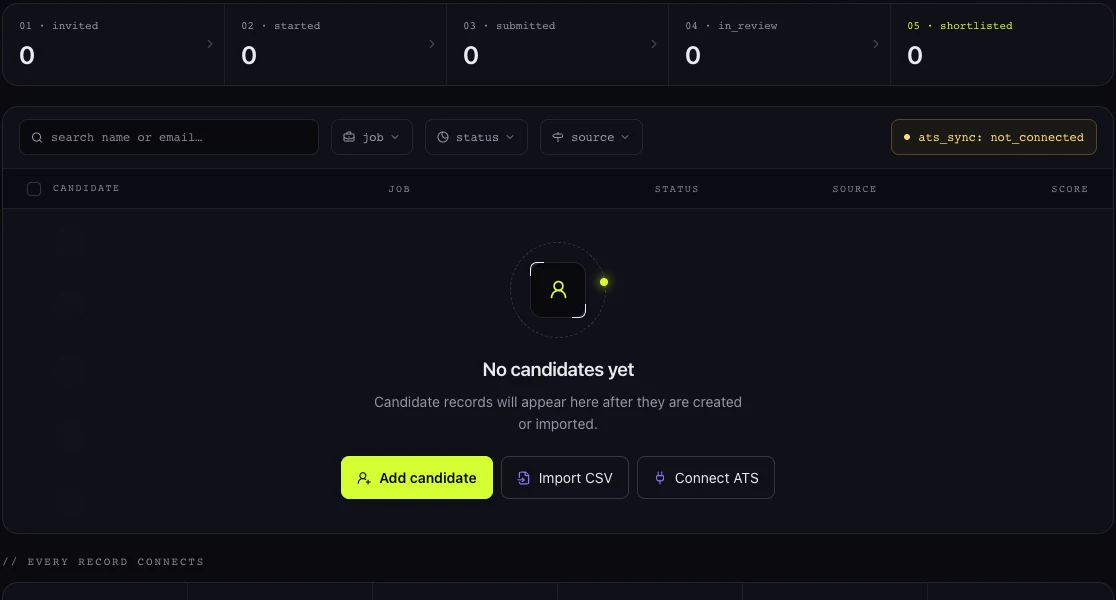
1. Find a record
Search by name or email, select a pipeline stage, or filter by job, status, and source. Open a matching name to see the candidate’s responses and review. Use Clear filters if someone you expect is missing.
 View full size
2. Add one person or import a list
Choose Add candidate and enter their name and email. For a list, choose Import CSV and upload a file with exactly two columns, name and email, and one person per row. Keep the file at or below 1 MB, include up to 100 people, and use each email only once.
name,email
Alex Rivera,alex@example.com
"Lee, Morgan",morgan@example.com3. Finish a partial import
If an import stops partway through, read the number of records remaining. Use Retry remaining to continue with the unprocessed records. To send invitations, open Interviews and select the job and template for the campaign.
CSV import reference
- Headers
- Use exactly name and email. The columns may appear in either order. Quote a name containing a comma.
- File and row limits
- Select a nonempty CSV of up to 1 MB and 1–100 contact records. Exclude the header when counting people.
- Validation
- Each row needs a name and a valid email. Email duplicate checks within the file ignore case. Correct the row identified in the error before importing again.
Check your result
A successfully added contact is searchable by name or email. A campaign invitation connects that candidate to the interview workflow.