Take your candidate interview
Start from the personal link in your invitation email. Keep that link private. Set aside time to complete the questions and upload your answers.
Have your invitation email, a current browser, and a camera and microphone available for the device test. Check the deadline in the invitation.
- Open invitation
- Test devices
- Answer prompts
- Submit interview
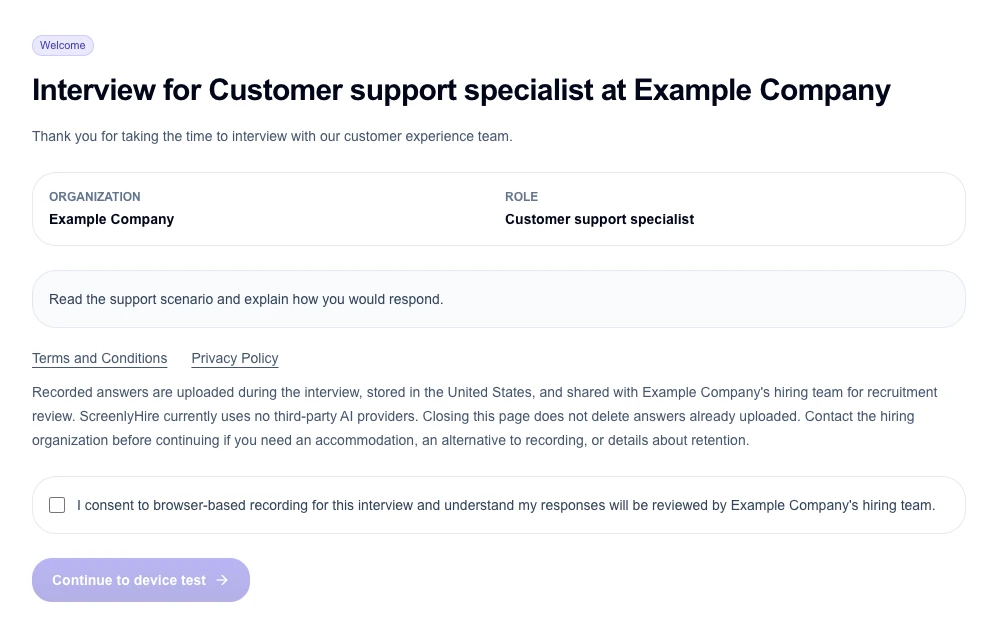
1. Read the invitation and consent notice
Check the role, hiring organization, instructions, and deadline. Read how your recordings will be used. If you need an accommodation or another way to respond, contact the hiring organization before continuing. When ready, give consent and select Continue to device test.
 View full size
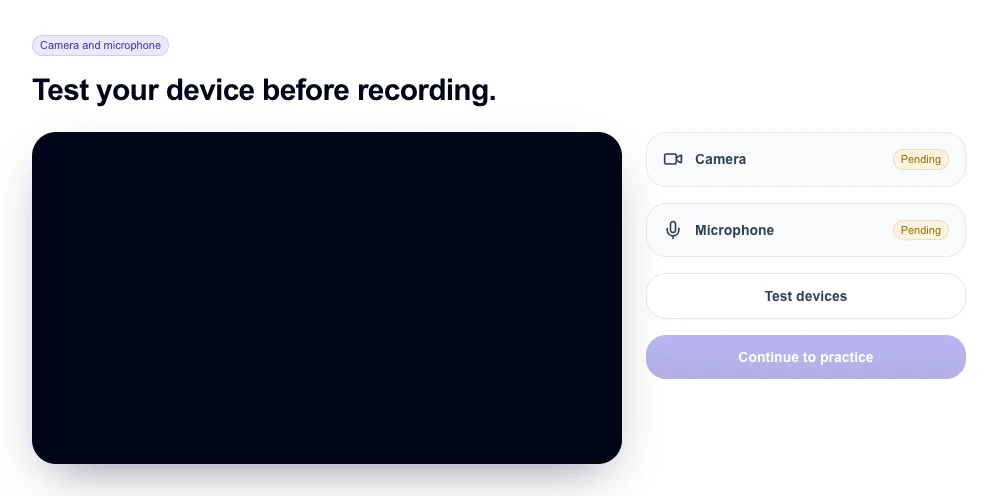
2. Test your camera and microphone
Choose Test devices and allow camera and microphone access in your browser. Look for both checks and your preview. Continue to practice, try Start practice and Stop practice to check your setup, then select Start interview. Your practice response stays out of the submission.
 View full size
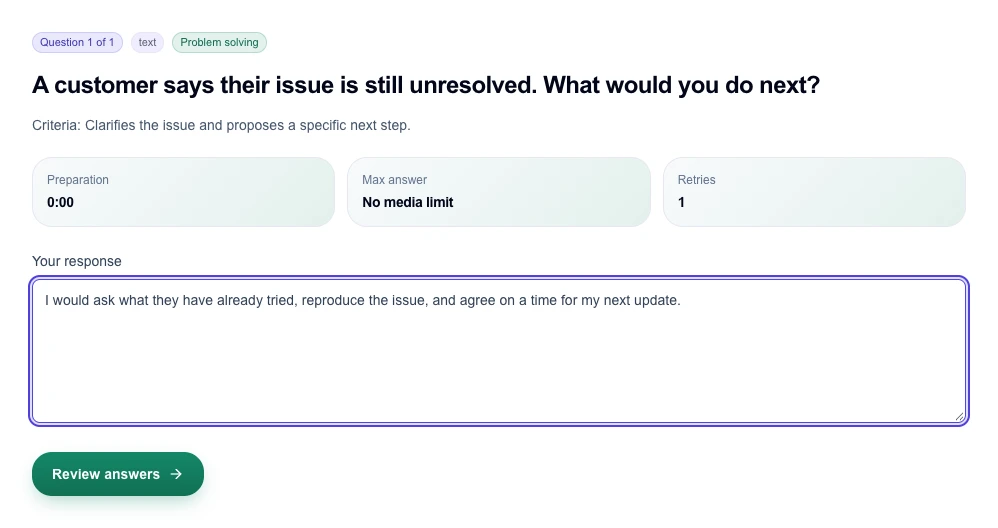
3. Answer a written or multiple-choice prompt
Read the prompt and its criteria. For a text question, type your answer in Your response. For multiple choice, select one of the provided options. Watch the answer timer if the question has a time limit. Choose Next question, or Review answers on the final question.
 View full size
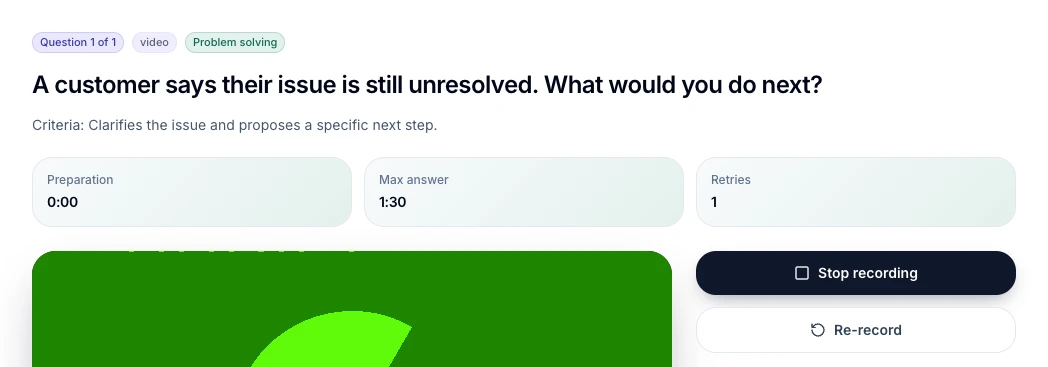
4. Answer a recording prompt
Check the Preparation and Max answer timers. When a preparation countdown is set, recording can begin automatically when it ends. If Start recording is shown, select it when you are ready. Speak while Stop recording is displayed. Stop when finished or let the timer end the response. If Re-record is available, using it replaces this attempt. Wait for the upload status before moving on.
 View full size
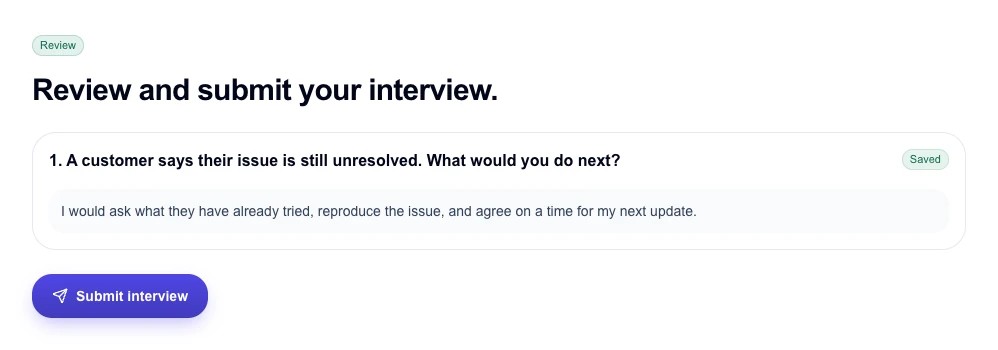
5. Review saved answers and submit
After the final prompt, choose Review answers. If review is enabled, check the saved responses. Wait for uploads to finish and select Submit interview. Keep the page open until you see “Interview submitted.” An uploaded answer alone does not finish the interview.
 View full size
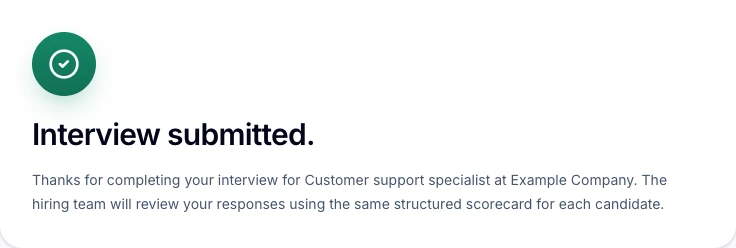
6. Check the confirmation
Look for the green checkmark, the role you interviewed for, and the hiring organization. Once you see this screen you can close the page. If the form stays on Review with an error, keep it open, read the message, and retry after resolving it.
 View full size
If something interrupts your interview
- No preview
- Check the browser’s site permissions and your operating system’s camera and microphone permissions. Run Test devices again.
- Recording is processing
- Keep the page open while the upload is pending. Follow the retry control on a failed response before submitting.
- Need an alternative
- Ask the hiring organization about accommodations. A written alternative appears on recorded prompts only when enabled for that interview.
- Closed the page
- Already uploaded answers may remain with the organization. Contact the hiring team if you need help determining whether your interview was received.
Check your result
The final screen says “Interview submitted.” At that point the hiring team can review the submission.